If an employee becomes unavailable for one or more visits, you can rebook their scheduled visit(s) to another employee or to an attendance type.
For example, if an employee calls in sick you would rebook their upcoming visits to the appropriate attendance type. *Check with your team for the complete workflow process on REG and CAS SICK bookings.
- If you are rebooking an employee's whole day (or part of it) to someone else then you work from the Employee Schedule.
- If you are focused on just one client needing another worker, then you work from the Client Schedule.
Contents in this article:
Rebook Visits to an Attendance Type
Rebook Reasons and Definitions
Rebook Visits to an Attendance Type
Rebooking employees to an attendance type retains the properties for the client visit, but not for the employee visit.
1. From the Employee Schedule, select the visit(s) you want to rebook.
2. Rt. click > Rebook visits or click 
The Rebook Visits window appears.
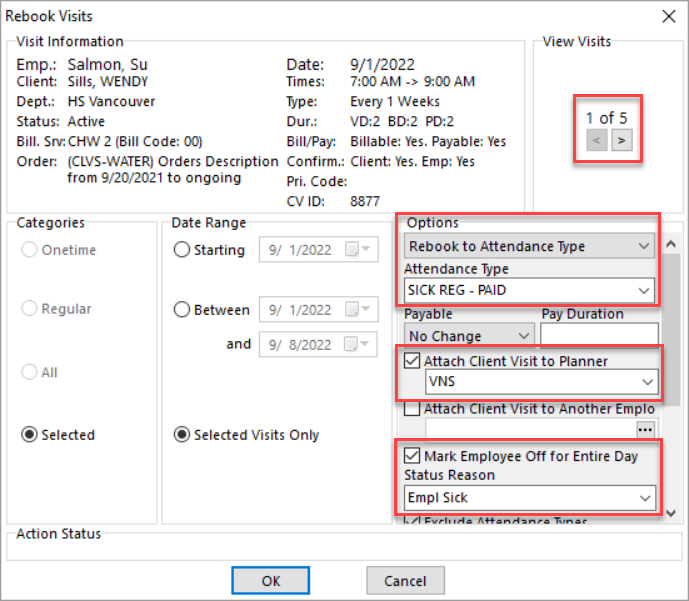
3. In the Categories section, if necessary, specify the type of visit you want to rebook, and the starting date or a date range.
4. In the Options section, choose Rebook to Attendance Type.
5. Select the Attendance Type from the drop down.
6. Select Attach Client Visit to Planner and choose the correct Planner these visits will go to.
7.Select Mark Employee off for Entire Day and choose a Status Reason.
8. If required, check Exclude Attendance Types when you want the attendance type visits to go to the Planner.
9. Click OK when finished.
The visit(s) have now been rebooked to the attendance type and the client visits have been sent to the planner for scheduling.
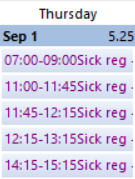
Step 2
10. Best practice is to update the schedule to only display one attendance type visit with the correct pay duration. *check with your team to determine how they reflect the pay duration*.
11. Select all the visits except for the first visit then rt. click > Delete Visits.
12. Uncheck 'Exclude Attendance Types' in Delete Visits window.
13. Double click on the visit to edit the Start and Stop fields to reflect pay hours. This will update the Duration section. Eg. 7am to 1pm = 6 hrs duration
14. 'Book' the visit in the Conflict Checking window.
You will now see only one visit time with the pay hours and Attendance Type on the schedule.
Rebook Visits to an Employee
If you've chosen to rebook the client visit(s) to another employee, the visit is removed from the original employee's calendar and scheduled on the new employee's calendar. Note: Conflict Checker is not used when rebooking to an employee this way.
1. From the Client or Employee Schedule, select the visit(s) you want to rebook.
2. Rt. click > Rebook visits or click
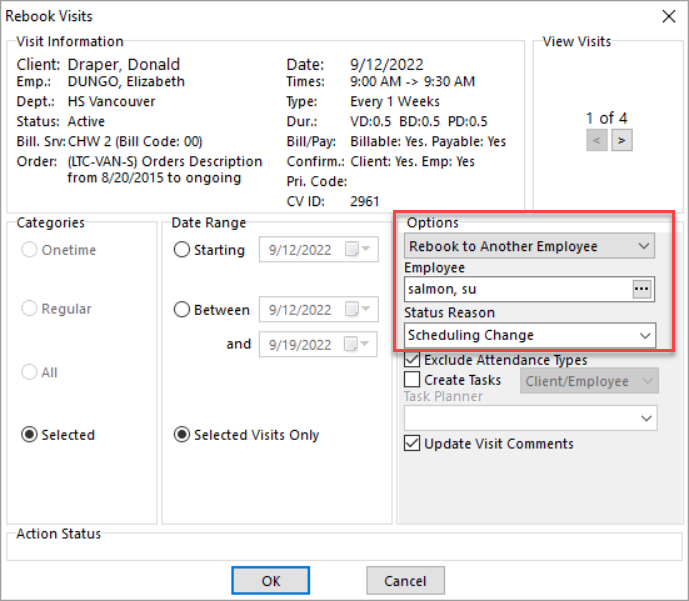
3. In the Categories section, if necessary, specify the type of visit you want to rebook, and the starting date or a date range.
4. In the Options section, choose Rebook to Another Employee.
5. Search for the Employee by clicking on the ellipses.
6. Select a Status Reason. Do not free text the reason.
7. If required, check Exclude Attendance Types when you want the attendance type visits to go to the Planner.
8. Check Update Visit Comments if you want the source employee name displayed in the visit comment.
9. Click OK when finished.
The visit(s) have now been rebooked to the new employee.
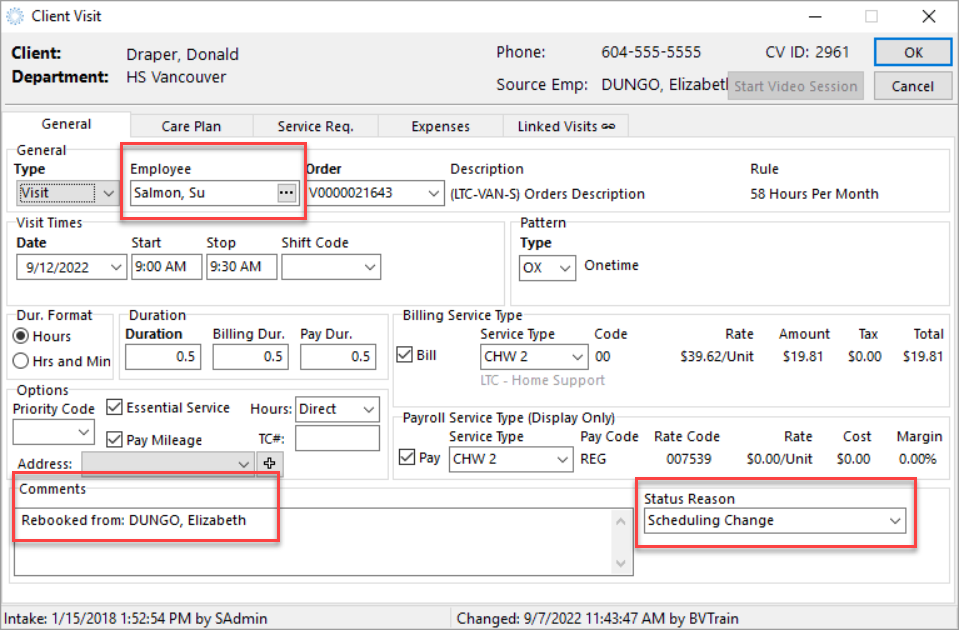
Rebook Reasons and Definitions
Use when a visit is moved to another worker or to an attendance type.
|
Name |
Definition |
|
Car Problem |
Use when the booked CHW is unable to get to the client’s home due to car problems. |
|
Child Sick |
Use when the booked CHW is unable to work as they have a sick child. |
|
CHW No Show |
Use when the booked CHW did not show up to the client’s home for the visit. |
|
CHW Seniority |
Use when the visit is moved to a CHW with more seniority. |
|
Client/FamilyRequest |
Use when the client, family or a friend requests a change to the visit. |
|
Emp Emergency |
Use when the booked CHW is unable to work due to an emergency. |
|
Empl Sick |
Use when the booked CHW is unable to work as they are sick. |
|
Hospital/Respite |
Use when the visit is rebooked because the client is in hospital or respite. |
|
Inclement Weather |
Use when the booked CHW is unable to attend the visit due to weather related issues. |
|
Lieu Day |
Use when the booked CHW is off work for a stat lieu day. |
|
Medical Appt. |
Use when the booked CHW is off work for a medical appointment. |
|
NA |
Use when the booked CHW is not available. |
|
Other |
Use only when no reasons in the picklist apply. Note: If Other is selected, add a note into the visit comments to explain the cancellation reason. |
|
Outbreak |
Use when the booked CHW is not able to work for reasons related to an outbreak (e.g. Covid 19). |
|
Refusal |
Use when the booked worker refuses to work with the client. |
|
Scheduling Change |
Use when the visits are rebooked or moved between CHWs for regular scheduling related changes (e.g. travel reduction). |
|
Shift Swap |
Use when moving visits from one worker to another when they have swapped shifts. |
|
Unable to Reach |
Use when unable to reach the booked CHW to confirm the visit, so it must be rescheduled to another worker. |
|
Unavailable Time off |
Use when the booked CHW is not available due to taking time off of work. |
|
Union Leave |
Use when the booked CHW is off work due to a union leave. |
|
Vacation |
Use when the booked CHW is off work due to vacation leave. |