To ensure the safety of our CHWs, as well as the timely provision of care for our clients, Procura Mobile automatically creates task alerts when a CHW has:
- not checked in to the visit within 30 minutes after the visit's scheduled start time.
- not checked out of the visit within 30 minutes of the visit's scheduled end time.
These alerts are sent to a Task Planner and are seen under your teams' Mobile Alerts planner type. These task alerts need to be followed up on throughout the day. Check with your supervisor on how often your team checks these tasks.
Follow these instructions to view and process Mobile Alerts.
1. From the Tasks Planner, go to your team's Mobile Alerts planner.
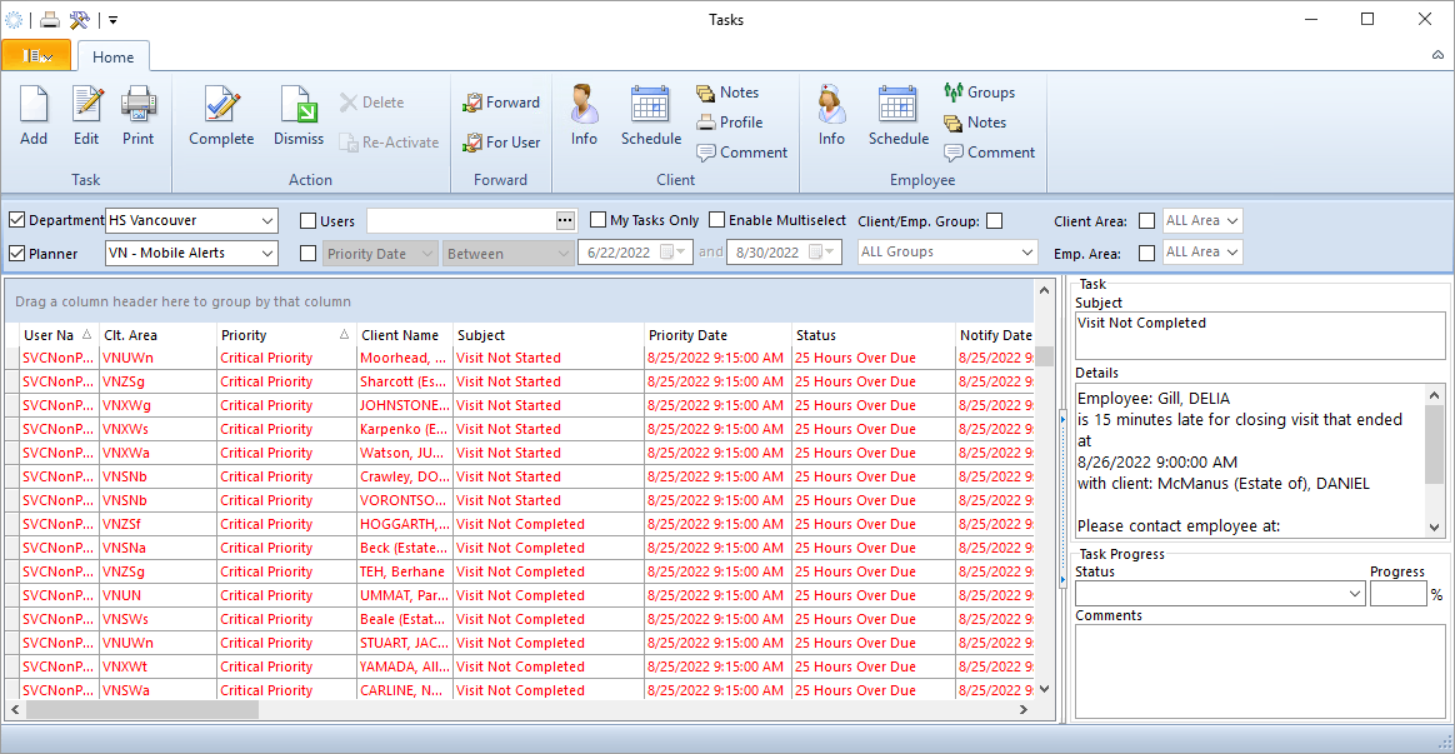
2. Clicking on any of the alerts in this planner will give you the following details on the right side:
- Employee name
- What the alert is about (Not Started or Not Completed)
- Visit time
- Client name
- Employee contact info.
3. Before you can mark these alerts as Complete, you must make contact with the CHW and confirm their safety and expected arrival or completion time. Follow this process to resolve these alerts:
1. Call the CHW on their mobile phone.
2. If they do not answer, use the Locate icon on their Employee Information record.
See How to Locate an Employee article.
3. If you still can't locate the employee, speak to your supervisor for further instruction.
4. When you are ready to complete the task, add Comments on the outcome and then click Complete.
5. Create a Dated Note if applicable. See Add a Dated Note article.