When in the Employee Information record, you can use the Locate icon to find the most recent GPS coordinates for a CHW using the Procura Mobile app.
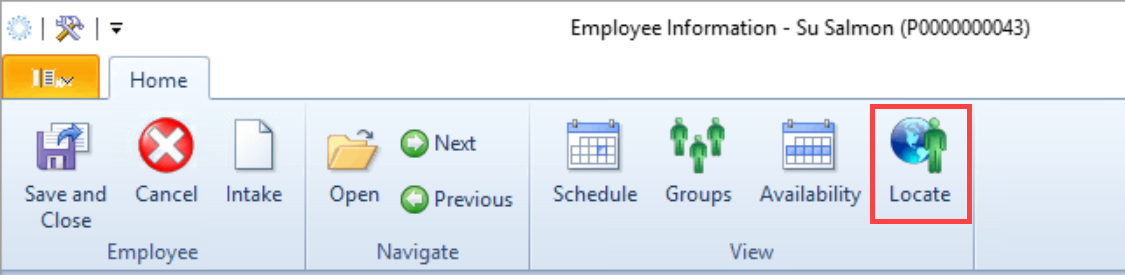
Clicking this icon will open the Locate Employee window. In this view, you’ll see the planned visits for this CHW, the best route between them (automatically calculated for mileage), and other information about the CHW’s movements.
There are five different kinds of information marker that can appear on the map:
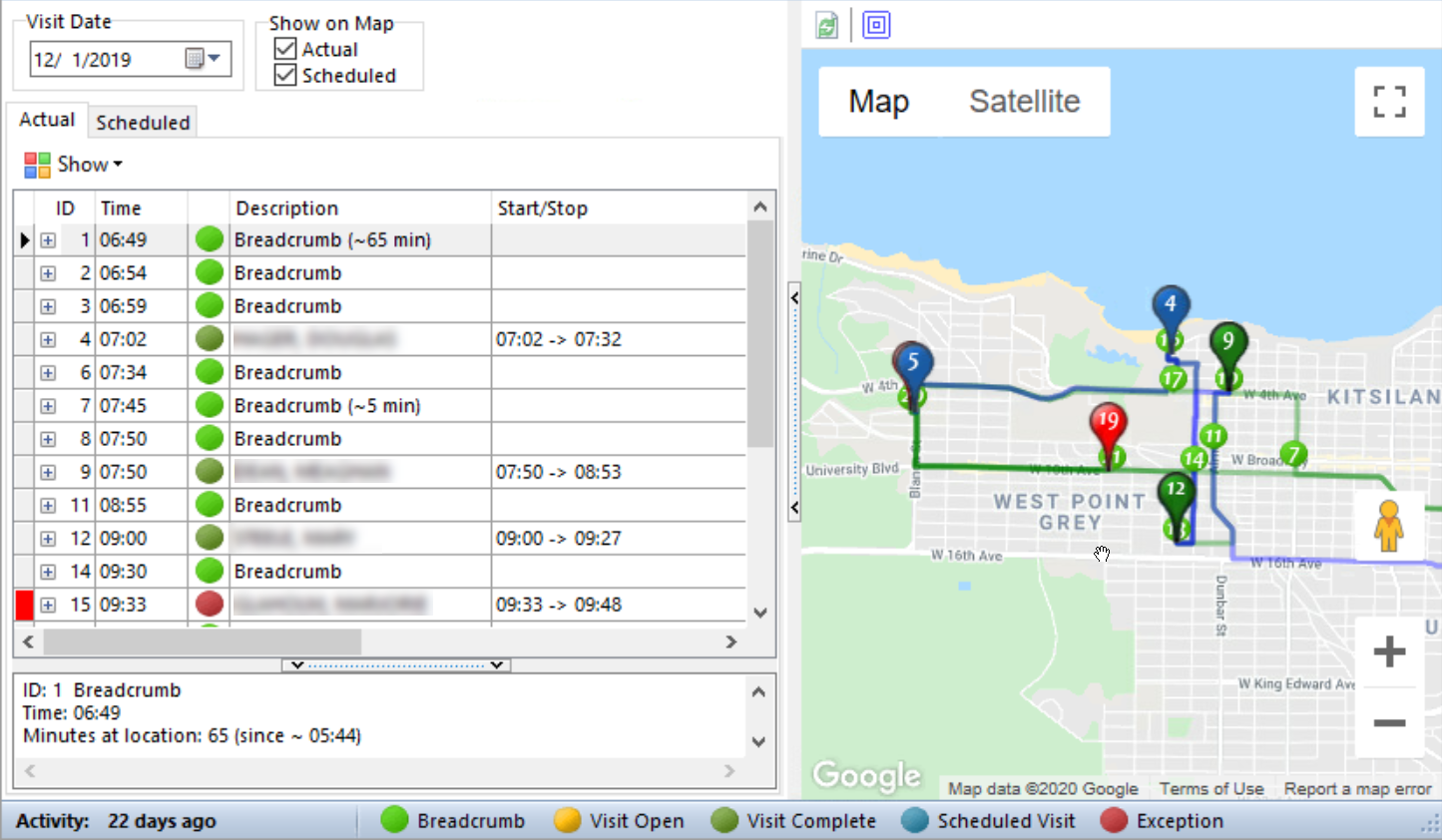
- Breadcrumbs, which display as small light-green circles, show the path that the CHW took on their route. These will be sent periodically from the app and can be used to identify the last known position of a CHW
- Open Visits, which display as larger yellow location pointers indicate when a CHW has opened a visit and not yet closed it
- Visit Complete, which are shown as large dark-green pointers at each scheduled visit location after it has been opened and closed by the CHW
- Scheduled Visit is the default type of location pointer, and is shown as dark blue
- Exceptions are caused when a CHW has opened or closed a visit further from the geocoded location than the system allows. These are warnings that there may be an issue with the client’s address or that the CHW is in the wrong location
Mousing over  at the bottom left of the screen will show you the last time this CHW logged into Procura Mobile, as well as the last time their device sent a GPS position breadcrumb.