Plan your route to client locations throughout your day in Procura from your VCH mobile phone. The Google Maps icon appears on the Appointment Details screen and the Client Details screen.
To plan your route to a client’s home, follow these steps:
1. From the Appointment Details or Client Details screen, tap on the Maps icon.

Google Maps will open with the client address marked with a red location icon.
2. Tap Directions to get see Google Maps’ suggested route option.
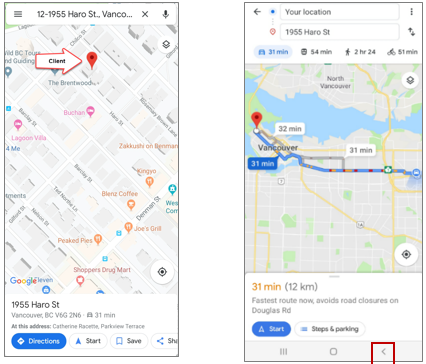
3. To exit Google Maps, tap on the Back Arrow on the bottom of the screen to get back to Appointment Details or Client Details.