The following article will show you how to run, save and print custom and canned reports.
Click on as section below.
Run and Print/Save a Canned Report
To learn more about the types and descriptions of canned reports available click here.
1. From the Main Ribbon, click the Reports tab.
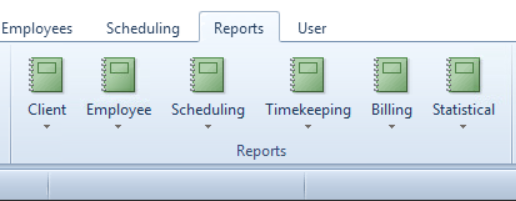
2. Select the category, then select the report you would like to run.

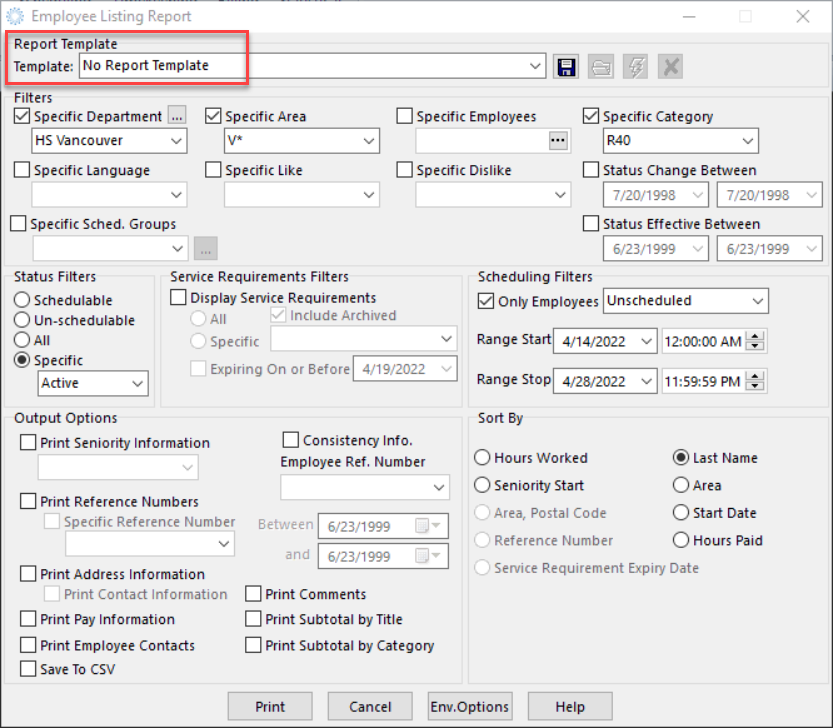
4. a) If using No Report Template, then select your print criteria from the Filters section.
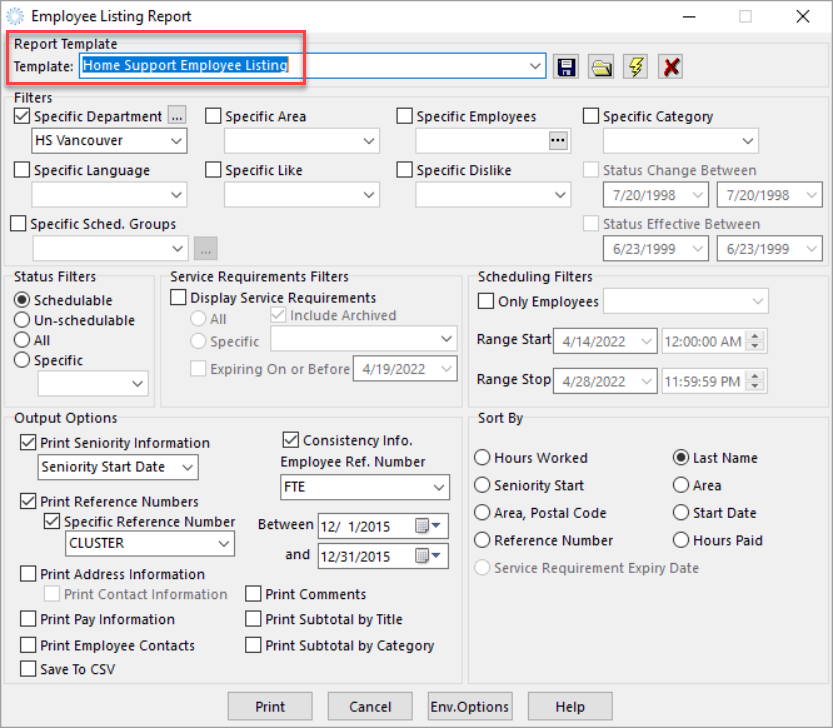
4. b) If using a template from the Template drop down menu, the filter criteria will pre-populate based on the type of template.
5. Click Print.
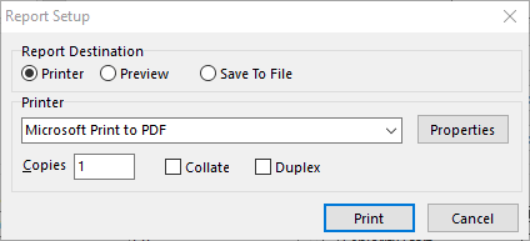
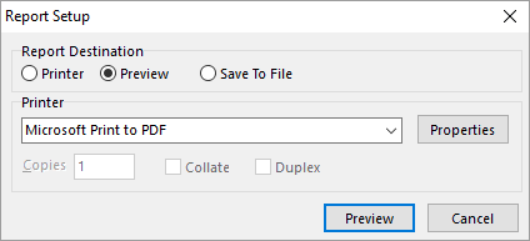
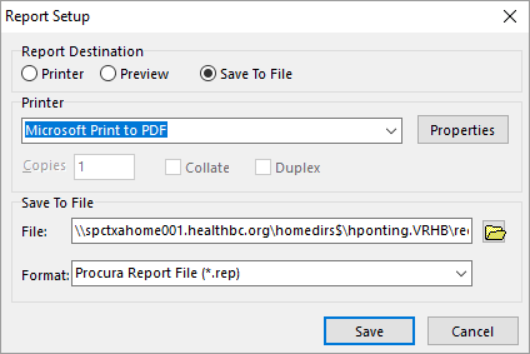
6. Choose the Report Destination: send to Printer, Preview report, Save to File.
Printer > Select the Printer destination
Preview
Save to File
Make sure you are choosing a correct destination File location by clicking on the  .
.
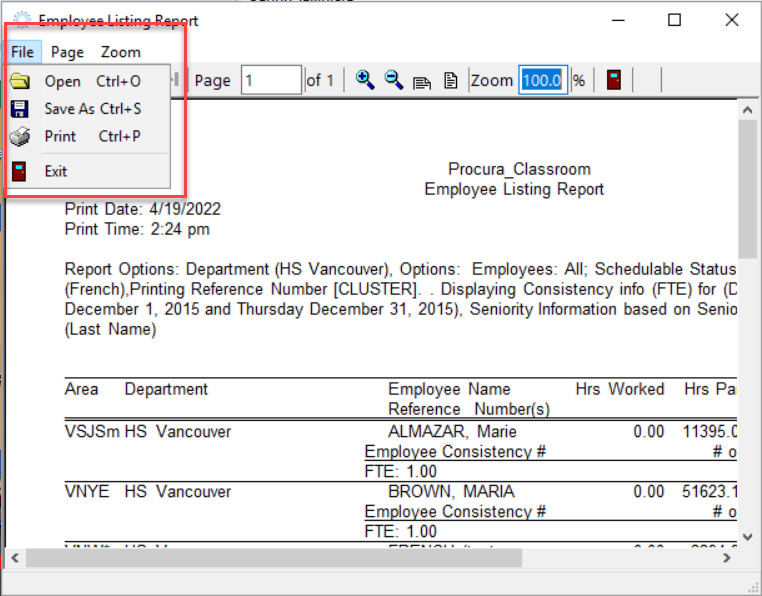
Note: you can always Preview your report and print or save from the Preview page.
Run and Print/Save a Custom Report
To learn more about the types and descriptions of custom reports available click here.
1. From the Main Ribbon, click the Reports tab > Report Explorer.
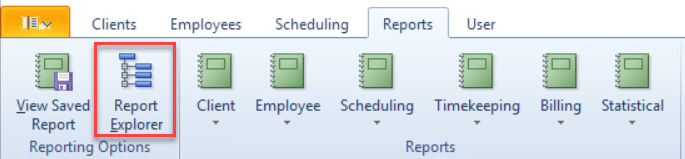
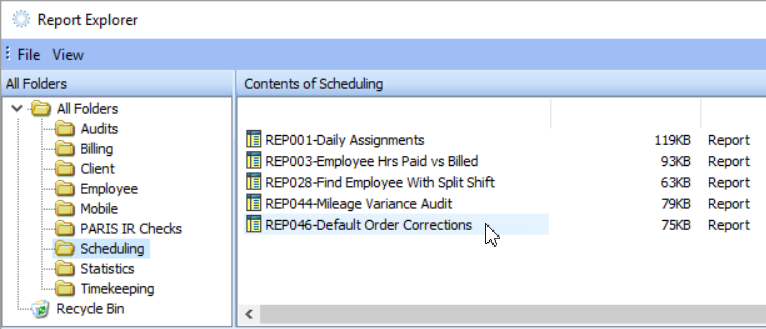
2. Select the folder category, then double click on the report you would like to run.
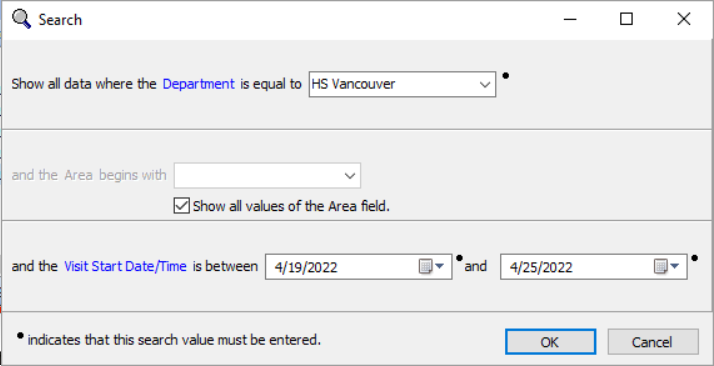
3. Complete the Search criteria, then OK.
Note: custom reports do not have templates.
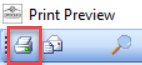
4. From the preview page, you can choose to print to a printer or .pdf so you can save the report. Click on the printer icon on the top right of the page.