The Client Update Note is used by desktop Procura users to communicate with Procura Mobile Users (CHWs). It should contain the highlights of changes or alerts about the Client. Using this note is similar to having a paper bulletin board. If new information is to be added, we must 'take down' the current bulletin and replace it with an updated sheet.
Follow the steps below to create Client Updates.
- Go to Dated Notes and review the list for an active Client Update note (Use filters to help see only Client Update notes). Active notes will be blank in the Status column (Discontinued notes are no longer active to mobile users)

- If there is an active note, double-click the active note and review content for relevance. (Skip to step 3 if there is no active note)
a) Copy the note content if still applicable
b) Enter ‘Discontinue’ to remove this end this note (Note: this will remove the note from Procura Mobile)
c) Save/Send to close note - Create a new dated note using the Client Update note type
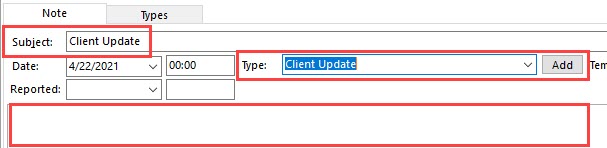
- Use the subject line: Client Update
- Add content in the body (paste the details from previous note if applicable)
See below for video instructions: