Contents in this article:
Create a Task
Tasks can be created several ways by using the:
- Employee or Client Record > Tasks Folder
- Tasks Planner
- User menu
- keyboard shortcut, CTRL+ALT+R from anywhere
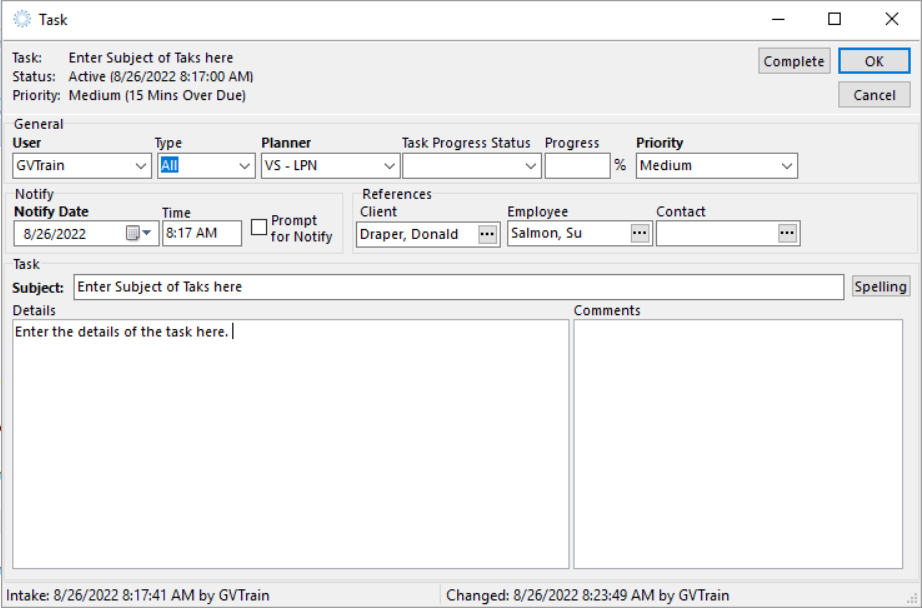
Regardless of where you choose to create a new Task, the window is the same.
Follow these steps to create a Task.
1. From wherever you choose, create a new Task.
2. Enter the details of the Task.
- Type: Private or All. Note: Only use Private if the Task is specifically for you and does need to be actioned by others.
- Planner: where is the task going to be visible in the Tasks Planner.
- Priority: urgency of task.
- Notify Date: change this date to when the Task should be completed by.
- Client or Employee References: who should this Task be about. Note: The Client or Employee name will already be populated here if you created the task from their Information record. Add the other name if required.
- Subject and Details.
3. When finished, either:
- click OK
- click Complete if the task has already been completed.
Complete or Dismiss a Task
1. From a task list, select the task that you want to dismiss or complete.
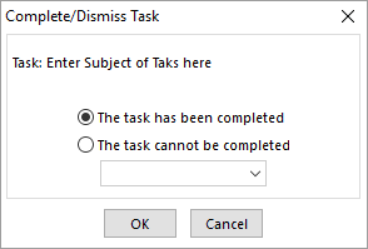
- If you were unable to complete the task, click Dismiss.
- if you've completed the task, click Complete.
Hint: you can also rt. click on the task to dismiss or complete the task.
The Complete/Dismiss Task window appears.
3. The task is removed from the incomplete Task list and has been archived to either the Completed Task List or the Dismissed Task List in the Employee or Client Information record.
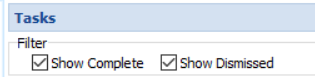
4. If you have completed or dismissed a task in error, you can re-activate the task by rt. clicking on the task > Re-activate or clicking on the Re-activate icon.