When creating visits in Procura, the system will automatically direct CHWs to the primary address but this can be changed. In situations where a client has multiple places of residence that they move between, Schedulers can manually adjust which address each visit is to take place at.
Making this adjustment will update what a CHW sees on their mobile device, without requiring you to change the primary address in Procura. Here's how you do it:
1. Add a Second Address
Before you can change the address associated with a visit, the client needs to have at least two addresses entered in Procura. If this is already done, proceed to step 2.
a) In the Addresses folder of the Client Information Record, go to the Client Addresses tab to add additional addresses.
The client may have multiple addresses with different address types. Note: if you would like new address type options added to the picklist, please submit a change request form.

2. Assign the Address to Visits in the Schedule
Visits can have alternate addresses assigned either by selecting several at once, or by changing them one at a time.
The Address button appears in the Edit section of the Client and Employee Schedule toolbar.
a) Select single or multiple visits (shift key + select first and last visit) in the client schedule then click Addresses to change the address associated with them all at once.

Or, rt. right click on the visit(s) selection and select ‘Change Address for Visits…’ from the jump menu.

Both options opens the Change Visit Selected Address window.
b) You can use the Address drop-down box to select from a previously-created address (see step 1) or you can click the plus sign ( ) to add a new address from this window.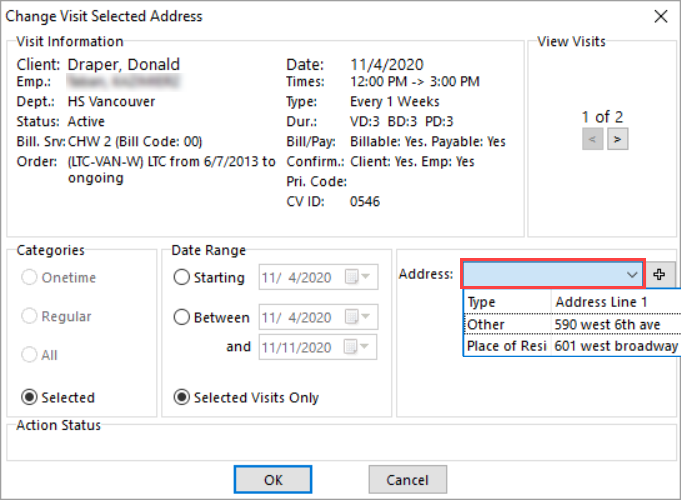
Note: This function is also available on the employee schedule, but only with visits for the same client.
Note: Rebooking Visits
When you rebook a visit, Procura will automatically check if the address needs to be removed from the visit, and the following will happen:
- If the visit is being rebooked to an attendance type, any address currently linked to the visit will be removed.
- If the visit is NOT being rebooked to an attendance type, no change is needed and the address you have entered will be saved.