If you need to reset or change your password, call Service Desk (604-875-4334) > press 1. They will provide you with a temporary password and direct you to https://internalapps.healthbc.org so you can create a permanent password. This permanent password is valid for 12 months and is used to log in to Procura, Procura Portal, Outlook, VCH apps, etc.
The following are instructions to help you with this process.
Contents
What You Need to Have Ready
Login to Citrix
Change Your Temporary Password
What You Need to Have Ready
In order to provide a temporary password, Service Desk will ask for:
- Your LAN ID (this is your Procura username that you use to log in)
- The Domain (VCH or VRHB)
- Your VCH email address
Once Service Desk has provided your temporary password, you will need to change it to a personal password immediately.
Login to Citrix
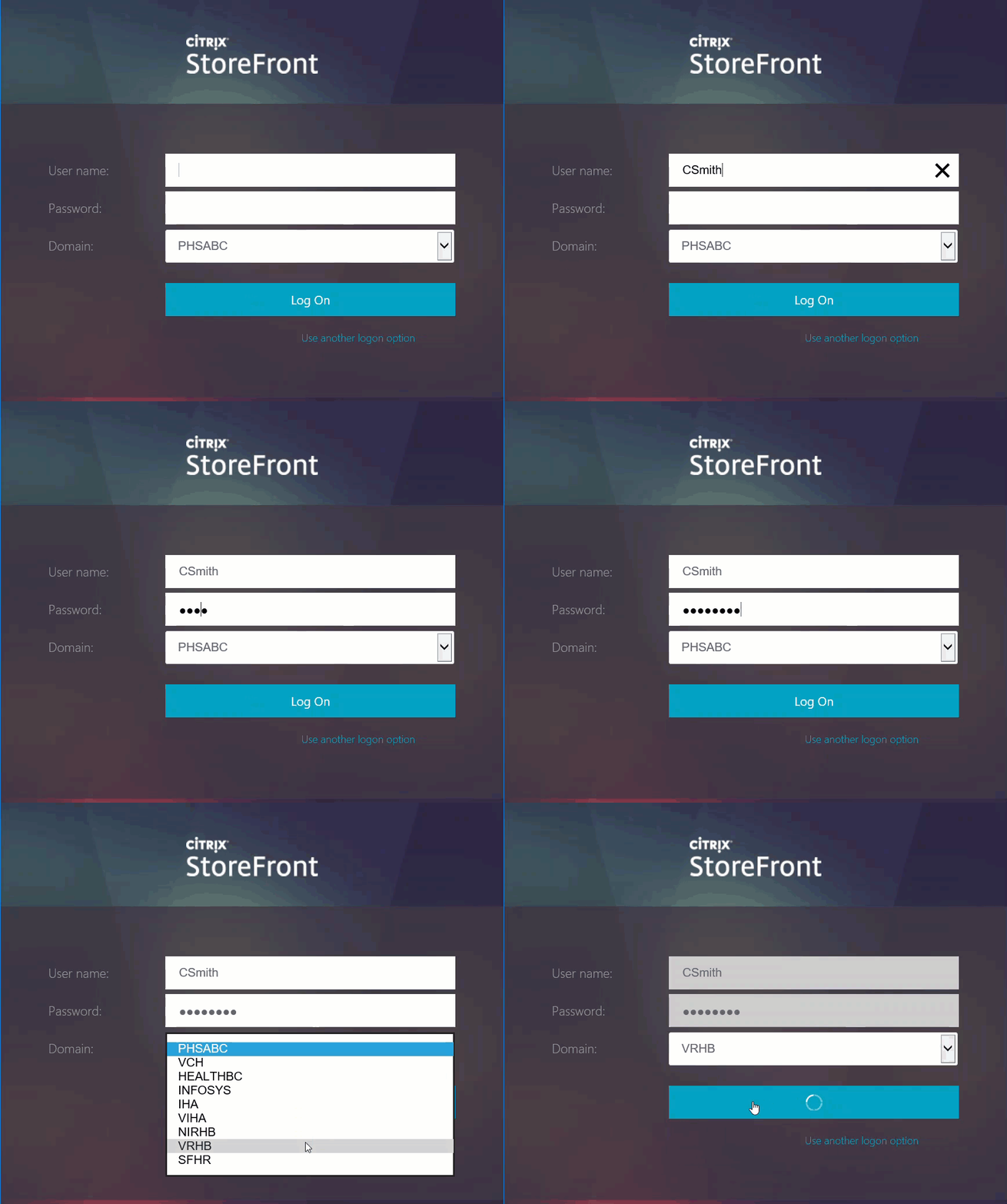
1. Tap on the Citrix Internal apps on your work phone or go to https://internalapps.healthbc.org
2. In the User name field, enter your Procura username (ex. CSmith).
3. In the Password field, enter the temporary password provided by Service Desk.
4. Tap Log On.
Change Your Temporary Password
You will be prompted to change the temporary password using the Change Expired Password screen.
1. In the Old password field, enter: the temporary password provided by the Service Desk.
2. In the New password field, enter your new password following the password criteria below.
Passwords will meet the following requirements:
- Are at least 12 characters long
- Are not frequently used (e.g. spring2022) or easily guessable (e.g. password1234)
- Do not contain single words found in the dictionary (e.g. ,abbreviation, bachelorette, calculations, etc.)
- Have a variation of upper (A-Z) and lower-case (a-z) letters
- Include at least one number and/or one special character (e.g. ! @ #)
- Do not contain information easily connected to you (e.g. birthday, phone number, spouse's name, pet's name or home address)
- Must not have been used before, follow patterns or sequences
3. In the Confirm password field, re-enter: your new personal password.